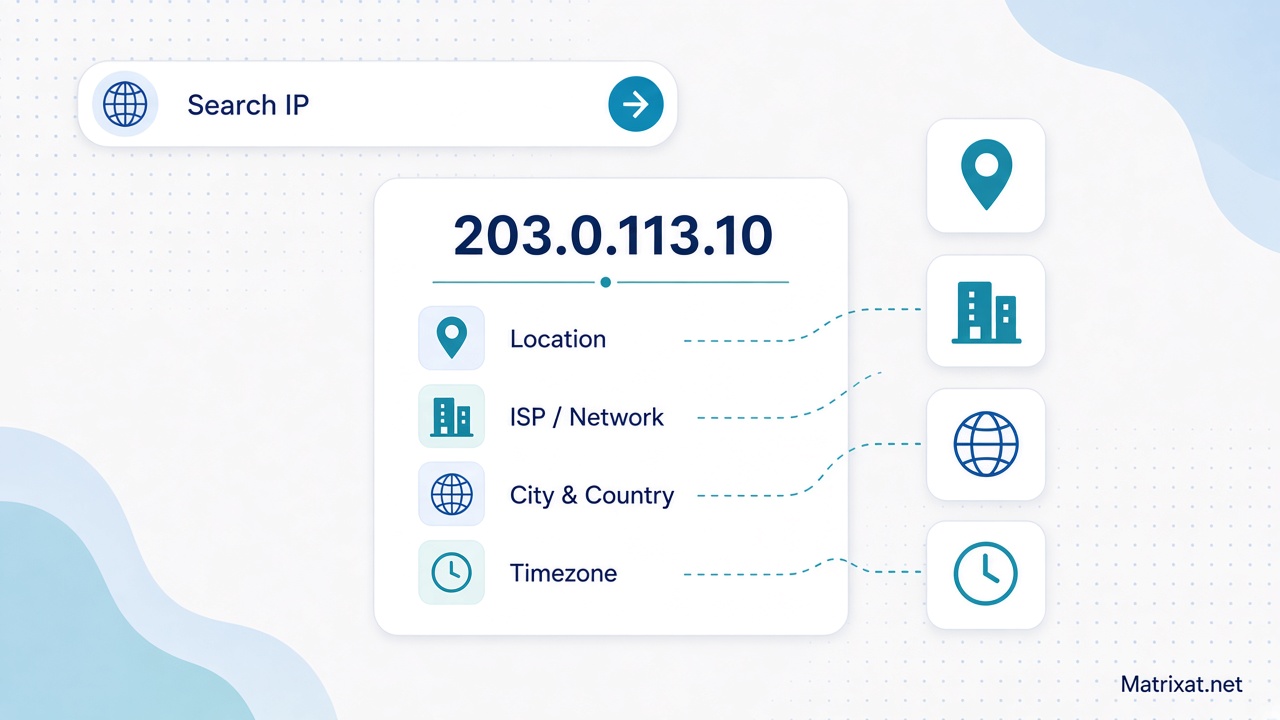
IP lookup on Matrixat: find location, city, country, coordinates, and timezone—then verify ISP/network clues with Reverse IP, DNS, and hosting tools.
An IP lookup is the fastest way to inspect the network identity behind an IP address: estimated location, city and country context, coordinates, and timezone. On Matrixat you can paste any public IPv4 or IPv6 address and read the geolocation result in one screen—then connect that answer to DNS, hosting, reverse IP, and security checks when you need deeper network context.
Try it now: open IP Lookup on Matrixat, submit an address such as a server IP from your DNS A record, and compare the live fields with the guide below. For hostname mapping after you have an IP, pair it with Reverse IP Lookup.
Quick answer: what IP lookup shows
IP lookup (geolocation lookup) answers: “Where does this address appear to be routed from, according to a geolocation database?” It does not prove who typed on a keyboard, and it is not a substitute for legal process. Typical Matrixat results focus on:
- Continent and country
- City (when the database has a city-level match)
- Latitude / longitude
- Timezone
ISP branding, ASN numbers, and “exact street address” claims are often confused with IP lookup. Treat location fields as estimates, then use companion Matrixat tools for hosting and DNS reality checks.
What Matrixat IP Lookup returns
When the lookup succeeds, Matrixat presents geolocation data derived from a MaxMind-style city database. Depending on the address, you may see:
- Continent — broad region label.
- Country — country name with flag context.
- City — city name when available (many IPs only resolve to country or metro level).
- Latitude & longitude — approximate coordinates for mapping—not a doorbell location.
- Timezone — time zone associated with the location record.
Empty or missing city fields are normal for carrier NATs, some cloud ranges, and sparsely mapped blocks. A failed lookup usually means an invalid IP string or a range with no usable city-database match.
How to run an IP lookup on Matrixat
- Copy a clean IP — Use a bare address such as
203.0.113.10or a valid IPv6 form. Do not paste a full URL. - Open the tool — Go to https://matrixat.net/ip-lookup. The form may prefill your current client IP for convenience—replace it when investigating a server.
- Submit and read location fields — Start with country and city, then coordinates and timezone.
- Cross-check with DNS — If the IP came from a website, confirm the A/AAAA record with DNS Lookup. Deep dive: DNS Lookup Explained.
- Add reverse context — Run Reverse IP Lookup to see the PTR/hostname clue for that address.
- Hosting / SSL follow-ups — Use Website Hosting Checker and SSL Lookup when the IP serves a live HTTPS site.
Location fields: how to read them
Country and continent
Country is the most reliable high-level signal for many investigations: it helps you spot unexpected regions for a brand’s production servers, or a sudden shift after a CDN/hosting change. Continent is useful for coarse filtering when city data is missing.
City
City-level precision varies widely. Mobile carriers, CGNAT, satellite links, and anycast/CDN edges can place the “city” far from the end user. Prefer city as a hint, not courtroom evidence.
Latitude, longitude, and timezone
Coordinates are database estimates for the IP block—often the center of a region or a provider PoP. Timezone helps when you correlate logs (“why are these events stamped UTC+3?”) but can disagree with the user’s real wall clock if they roam or use a VPN.
| Field | Question it answers | Next Matrixat tool |
|---|---|---|
| Country / continent | Which region is associated with this IP block? | Compare with expected hosting region |
| City | Is there a city-level estimate? | Treat as approximate; verify with hosting/DNS |
| Lat / long | Where does the database place the block? | Do not treat as a street address |
| Timezone | Which zone is linked to the location record? | Useful for log correlation |
| (Companion) Reverse IP | What hostname points back to this IP? | Reverse IP Lookup |
ISP and network details: the honest workflow
People search “IP lookup ISP” because they want the provider behind an address. Matrixat’s IP Lookup page emphasizes location fields from the city database. For ISP / network neighborhood context, combine tools:
- Reverse IP Lookup — PTR hostnames often include ISP or cloud provider hints (
*.amazonaws.com,*.googleusercontent.com, carrier patterns). - Website Hosting Checker — provider clues for a hostname that resolves to the IP.
- DNS Lookup — confirms which hostnames currently point to the address (A/AAAA), and related mail/CDN records.
- WHOIS Lookup — for domains, shows registrar and registration dates; useful when the IP belongs to a suspicious new domain. Guide: WHOIS Lookup.
That stack—IP location + reverse hostname + DNS + hosting—gives a practical “network details” picture without pretending a single green button knows everything.
IPv4 vs IPv6 in lookups
Both families are valid inputs when correctly formatted. Practical notes:
- IPv4 — still dominant in many hosting panels and older logs; easiest to share.
- IPv6 — increasingly common on modern stacks; geolocation coverage quality varies by provider.
- Private ranges — addresses like
10.x,192.168.x, or link-local IPv6 are not public internet endpoints; public geolocation will not meaningfully “locate” them.
IP lookup vs DNS vs WHOIS vs reverse IP
Keep the jobs separate so you pick the right Matrixat tool:
- IP Lookup — estimated location/timezone for an IP address.
- DNS Lookup — how a domain maps to IPs and mail/DNS records now.
- WHOIS Lookup — domain registration metadata (owner if visible, registrar, creation, expiry).
- Reverse IP Lookup — hostname associated with an IP (PTR direction).
- SSL Lookup — certificate details for an HTTPS host.
Example path: domain → DNS A record → IP Lookup for region → Reverse IP for hostname flavor → Hosting/SSL for production confidence. Broader pre-ship pack: Checker tools guide.
Practical Matrixat workflows
Website goes live in the “wrong” country
- DNS Lookup the apex and
wwwA/AAAA records. - IP Lookup each address; note country/city.
- If you expected a local PoP but see another region, check CDN/proxy settings or hosting region.
- SSL Lookup to confirm the certificate still matches the hostname after changes.
Suspicious link or phishing review
- Do not enter passwords on the suspect site.
- Resolve the host with DNS Lookup; capture the IP.
- IP Lookup for region; Reverse IP for hostname patterns.
- WHOIS the domain for creation/expiry/registrar age signals.
- Screen the URL with Safe URL Checker when appropriate.
None of these steps alone prove malice—combine signals and report through proper channels when needed.
Support and log correlation
- Match customer-reported IPs with timezone/country from IP Lookup when validating access logs.
- Remember VPNs, mobile networks, and corporate egress make “user city” unreliable.
- Document the IP + timestamp + tool output when escalating to a host or abuse desk.
Accuracy limits (read this before you act)
- Geolocation databases update on a schedule; recent renumbering can lag.
- VPNs, proxies, Tor exits, and corporate gateways intentionally detach users from “home” geography.
- Anycast and CDN edges may show the PoP location, not the origin datacenter you manage.
- City fields can be wrong even when country is right.
- IP lookup does not reveal personal identity, browsing history, or exact GPS of a person.
Responsible use
Use IP Lookup for legitimate operations, security review, support, and infrastructure checks. Do not use location estimates to harass people, bypass access controls, or make sensitive decisions about individuals. Prefer organization-level and infrastructure facts when you publish findings. For AdSense-safe publishing on your own site, keep educational framing and avoid “how to hide from law enforcement” style content.
FAQ: IP Lookup on Matrixat
Is IP Lookup free on Matrixat?
Yes. Open IP Lookup in your browser for standard checks.
Can IP lookup show the exact street address?
No. Results are approximate geolocation for an IP block—useful for region and timezone, not a postal address.
Does Matrixat IP Lookup show ISP name?
The IP Lookup screen focuses on location fields (continent, country, city, coordinates, timezone). For ISP/network clues, continue with Reverse IP, hosting checker, and DNS as described above.
Why is the city blank?
Many IP ranges only have country-level data. Blank city is common and not necessarily an error.
What should I open after IP Lookup?
Usually Reverse IP Lookup and DNS Lookup; add SSL and hosting checkers for live websites.
Is my own IP private when I test?
You are querying public geolocation data for an address you submit. Avoid pasting sensitive internal-only addresses that should stay off public pages, and follow your organization’s privacy rules.
Conclusion
A solid IP lookup workflow on Matrixat starts with location, city/country context, coordinates, and timezone—then expands into reverse IP, DNS, hosting, and SSL when you need real network detail around a server or campaign host. Start at IP Lookup, treat geolocation as an estimate, and verify live behavior with the rest of the checker toolkit before you migrate traffic, trust a link, or file an infrastructure ticket.